
Nashville, TN, September 24, 2025
A practical, local guide to installing Kasa Smart devices in Nashville homes and rentals. The article walks through prep steps—downloading the Kasa Smart app, ensuring a 2.4 GHz Wi‑Fi connection, enabling Bluetooth when needed—and a quick step-by-step setup process. It also covers pairing with Alexa and Google Assistant, common mistakes to avoid (wrong Wi‑Fi band, ignoring firmware updates, poor placement), and Nashville-specific tips for historic homes, rentals, and high-density areas. Security best practices like strong passwords and two-factor authentication are emphasized so devices stay reliable and secure.
Set Up Your Kasa Smart Gear Like a Local Nashville Pro
Listen up, Nashville — whether you live in a Midtown condo, a historic East Nashville bungalow, or you’re planning to bring a few smart plugs and bulbs on a short stay, setting up your Kasa Smart devices doesn’t have to be a headache. Here’s the inside scoop from someone who’s installed more smart plugs than there are live music venues downtown. Quick, snappy, and packed with useful tips you can actually use.
Before You Start: Prep Like a Planner
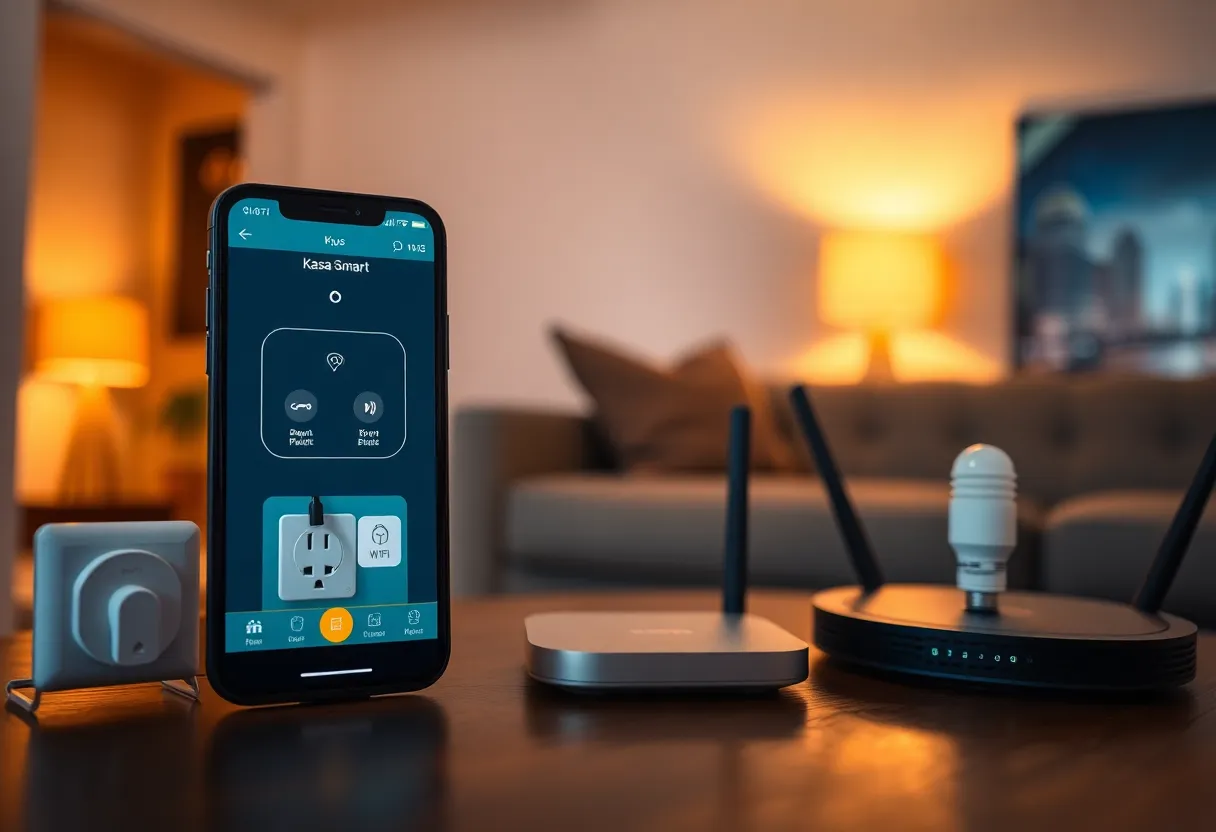
First things first, get your phone ready. Download the Kasa Smart app from your app store and create an account. Make sure your home Wi‑Fi is running on the 2.4 GHz band — Kasa devices usually don’t play nice with 5 GHz. If your apartment’s Wi‑Fi is managed by building hardware or you’re on a mesh network, double-check that you can see a standalone 2.4 GHz SSID. Turn on Bluetooth if your device uses BLE for initial pairing.
The Setup Process (Fast and Furious)
- Plug it in and watch the lights. The LED should blink—usually orange and blue—when it’s ready. If not, hold the reset button for 5–10 seconds until it does.
- Open the Kasa app and tap the + icon. Pick your device type and model, then follow the steps to connect to your 2.4 GHz Wi‑Fi.
- Name the device. Don’t be vague — name it “Kitchen Plug” or “Front Porch Light” so voice assistants know exactly what you mean.
- Finish the setup and test it. Toggle the device on and off in the app before you walk away. If it squeaks, reset and try again.
Connect to Alexa or Google Assistant
Pairing Kasa with a voice assistant is simple. Enable the Kasa skill or action in the assistant app, link your Kasa account, and then use the assistant’s device discovery. Give your devices clear, short names that are easy to say over the noise of Broadway or a busy kitchen.
Common Mistakes Nashville Folks Make (Avoid These)
- Using the wrong Wi‑Fi band. If you’re in a dense area like The Gulch or Downtown, your router might be broadcasting both bands. Pick 2.4 GHz for the Kasa gear.
- Not enabling Bluetooth during setup. Some newer Kasa models use BLE for initial setup — keep it on.
- Ignoring firmware updates. Kasa pushes updates for performance and security. Check the app weekly, especially if you live in an older home where weird interference can pop up.
- Placing devices out of range. Old Nashville homes often have thick walls. Keep devices within solid Wi‑Fi range or add a cheap extender for farther rooms.
- Forgetting app permissions. Location and network access can be required. Don’t deny them and then blame the device.
- Overcrowding a single router. If your household has cameras, smart TVs, and a fleet of smart plugs, consider a router that can handle many devices or segment your network.
- Not testing before final placement. Place, test, and then fix — not the other way around. You don’t want to mount a camera only to discover its signal dies on your porch steps.
Local Tips for Nashvillians and Visitors
If you rent in East Nashville or stay in a short‑term rental near Music Row, smart plugs and bulbs are your friends because they’re easy to move and don’t require rewiring. For homes built in the early 1900s, house wiring and outlet placement can be quirky — carry an extension or choose a plug model with a slim profile so it won’t block adjacent outlets. If you’re visiting and want to run lights remotely, set schedules in the app so your place looks lived in while you’re out enjoying the honky‑tonks.
Security and Best Practice
Use strong passwords for both your Wi‑Fi and Kasa account, enable any available two‑factor authentication, and always use the official Kasa Smart app. If a device won’t connect after multiple tries, factory reset it and follow the app instructions step by step.
Final Word
Getting Kasa set up is mostly straightforward — but the little local quirks matter. Keep your Wi‑Fi band in check, name devices clearly, place them where the router can reach, and update the firmware. Do that and you’ll have a smart home that performs smoother than a midtown Sunday brunch line.
FAQ
Do Kasa devices work on 5 GHz Wi‑Fi?
No. Most Kasa devices need a 2.4 GHz connection. Make sure your phone and router let you choose that band during setup.
What if my Kasa device won’t enter pairing mode?
Unplug and plug it back in. If the LED doesn’t blink, press and hold the reset button for 5–10 seconds to force pairing mode, then try the app again.
Can I control Kasa devices with Alexa and Google Assistant?
Yes. Enable the Kasa skill or action in your assistant app, link your account, and run device discovery. Use short, clear names for voice commands.
Where should I place smart devices in an older Nashville home?
Keep them within good router range and avoid thick brick walls where possible. Consider a Wi‑Fi extender for attics or rear porches.
Is it safe to use Kasa devices in rental properties?
Yes — smart plugs and bulbs are renter‑friendly because they aren’t permanent. Just follow host rules and remove devices when you leave if required.
Quick Features Chart
| Feature | Why it Matters | Nashville Tip | Score (1-5) |
|---|---|---|---|
| 2.4 GHz Wi‑Fi | Required for stable device connection | Check band in high-density areas like Downtown | 5 |
| App Permissions | Needed for setup and optimal operation | Allow location and network access during install | 4 |
| Firmware Updates | Security and reliability improvements | Check weekly if you live in an older home | 5 |
| Device Placement | Affects signal and performance | Avoid thick brick walls in historic neighborhoods | 4 |
| Voice Assistant Integration | Hands-free control and convenience | Name devices clearly for noisy bars and busy kitchens | 4 |
Deeper Dive: News & Info About This Topic
HERE Resources

Author: HERE Nashville
The NASHVILLE STAFF WRITER represents the experienced team at HERENashville.com, your go-to source for actionable local news and information in Nashville, Davidson County, and beyond. Specializing in "news you can use," we cover essential topics like product reviews for personal and business needs, local business directories, politics, real estate trends, neighborhood insights, and state news affecting the area—with deep expertise drawn from years of dedicated reporting and strong community input, including local press releases and business updates. We deliver top reporting on high-value events such as CMA Fest, Bonnaroo Music & Arts Festival, and Nashville Pride Festival. Our coverage extends to key organizations like the Nashville Area Chamber of Commerce and Nashville Health Care Council, plus leading businesses in healthcare, automotive, and technology that power the local economy such as HCA Healthcare, Bridgestone Americas, and Asurion. As part of the broader HERE network, including HEREBristol.com, HEREChattanooga.com, HEREKnoxville.com, and HEREMemphis.com, we provide comprehensive, credible insights into Tennessee's dynamic landscape.